What can you do with V380 Pro on a PC?
Watch your cameras
Open live video on a larger screen and arrange connected cameras in separate viewing tiles.
Save video and screenshots
Record a selected live stream on the PC and choose where its video and images are saved.
Review recordings and alarms
Find video on the PC, camera memory card or cloud, and configure supported detection settings.
Get started on Windows
- Download and install. Save the Windows installer above, follow setup and launch the V380 desktop client.
- Sign in. Use the same V380 Pro account as your phone app.
- Connect your camera. Open a camera already in your account, or add it by device ID or LAN search. The camera must already be online.
- Open live video. Double-click the camera in the left list, then select its video tile before using the controls.
Follow the complete installation and camera connection guide →
STEP-BY-STEP WINDOWS GUIDES
V380 Pro For PC User Manual
From your first camera connection to recording, playback and alarms, follow the illustrated guide for the task you need.
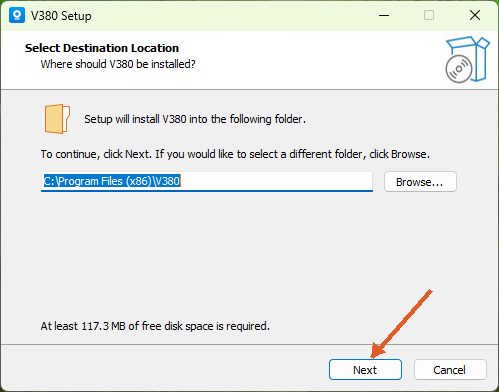
Install & connect your camera
Follow the Windows installer, sign in and connect a camera through your account, device ID or LAN search.
Read the guide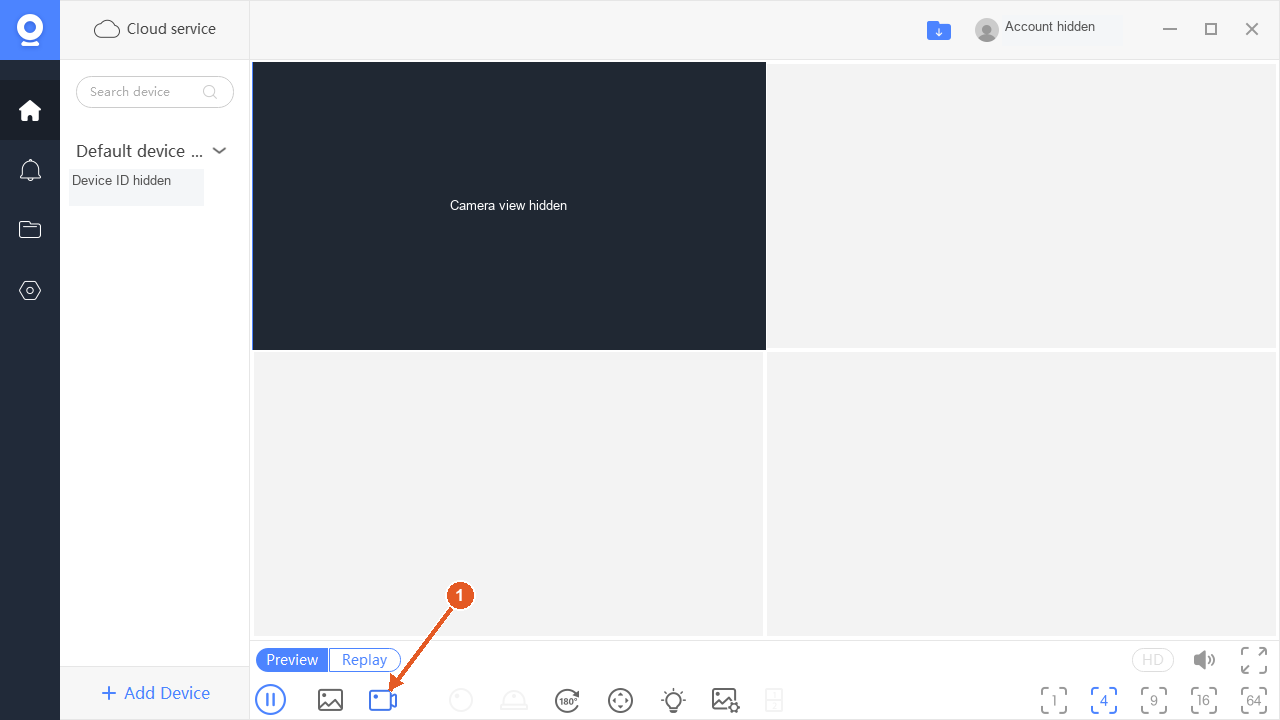
Record video & save screenshots
Save live video and screenshots, choose PC storage folders and understand memory-card and loop recording.
Read the guide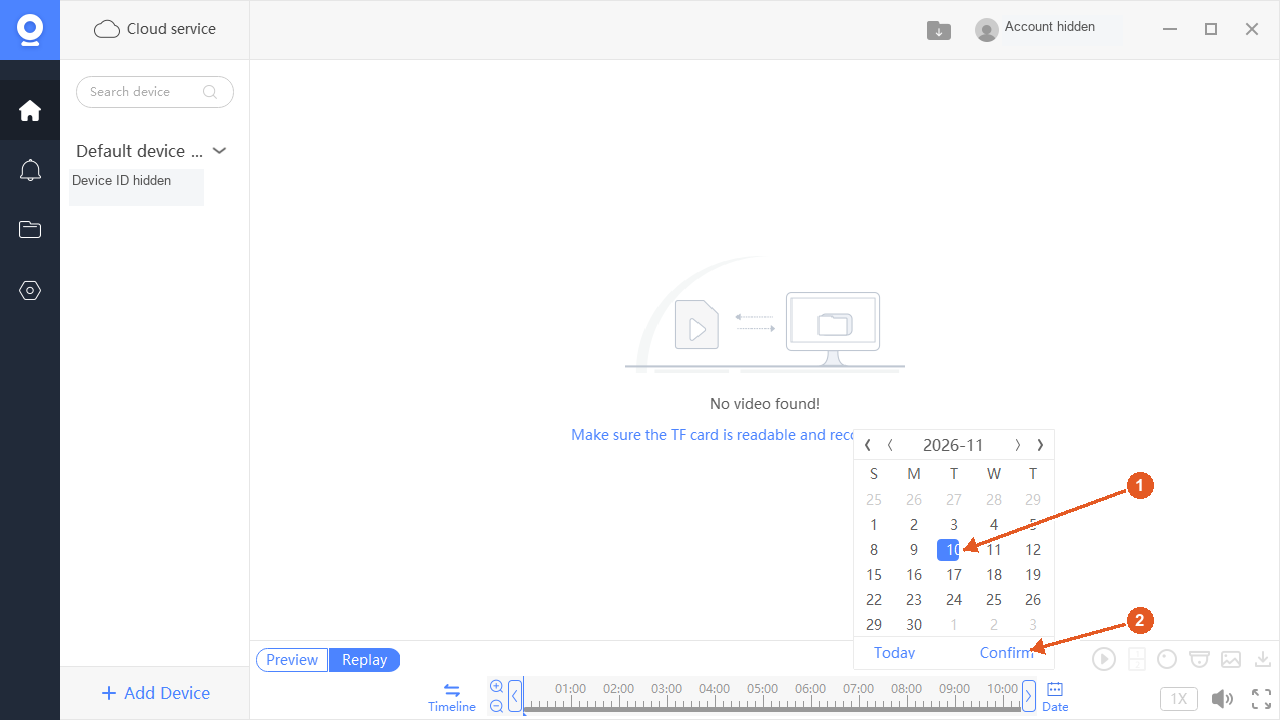
Find & play your recordings
Find recordings on the computer, camera memory card or cloud, then select the date and time you need.
Read the guide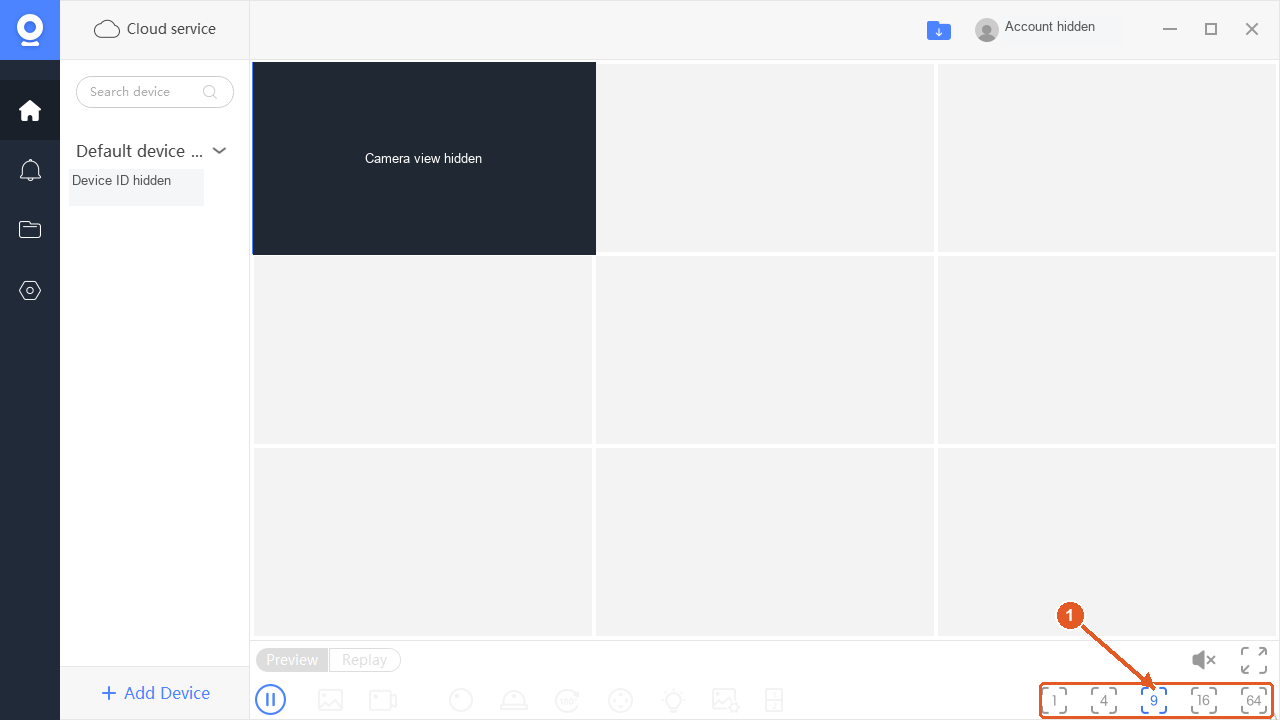
View & manage multiple cameras
Choose a viewing layout, adjust live video and organize your cameras with names and groups.
Read the guide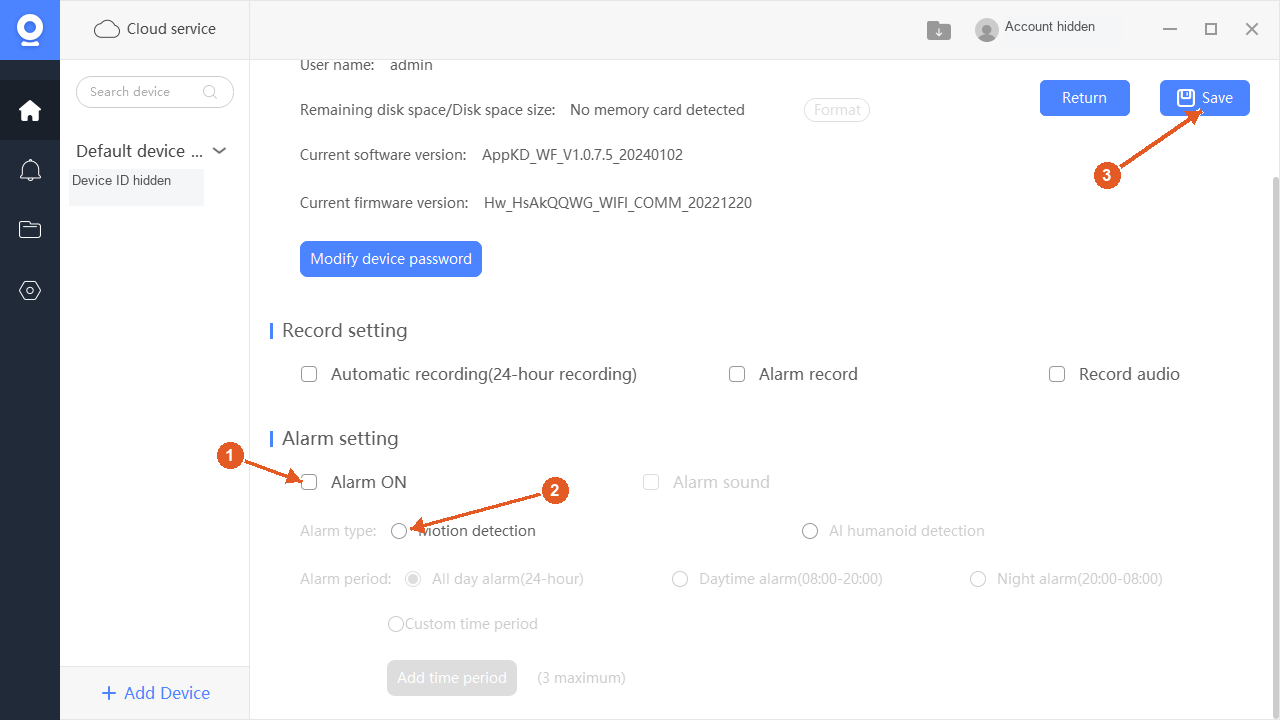
Set up motion detection & alarms
Configure supported motion detection, choose an alarm period and review PC notification settings.
Read the guidePC & Mac setup
Before installing, set up your camera in the mobile app and check that live video works. Keep the camera's device ID and device password ready.
How do I install the Windows client?
- Use the Windows download above to save V380.2.0.9.exe to your computer.
- Open the EXE file and follow the installation instructions, then launch the V380 client.
- Sign in with your mobile-app account to find its cameras, or use Add Device with the camera’s device ID and device password. The device password is separate from your account and Wi-Fi passwords.
- If the camera is offline, check that live video still works in the mobile app. See the network setting guide for connection help.
See the illustrated Windows installation guide for each screen and connection method.
Why is the Windows download called V380?
The Windows desktop client is named V380 and is used with V380 and V380 Pro cameras. The download above is an EXE installer for Windows.
Installing V380 Pro on a Mac
- Check that your Mac has an Apple M1 chip or later and macOS 12.0 or later.
- Open the Mac App Store link above and install V380 Pro if available.
- Open the app and follow its prompts to access your camera.
Do I need an Android emulator?
The Windows download is a desktop installer and does not require an Android emulator. Compatible Macs can use the App Store option above.
Can I use this Mac option on an Intel Mac?
The App Store listing requires an Apple M1 chip or later. Intel Macs are not listed as compatible with this download.
Which password should I use for my camera?
Use the camera's device password when asked for camera access. It is separate from your app-account and Wi-Fi passwords. See the password setting guide.
What if my camera is offline or shows no picture?
Check the camera's power and network connection, then try live video in the mobile app. See network setting, real-time preview or video troubleshooting.


